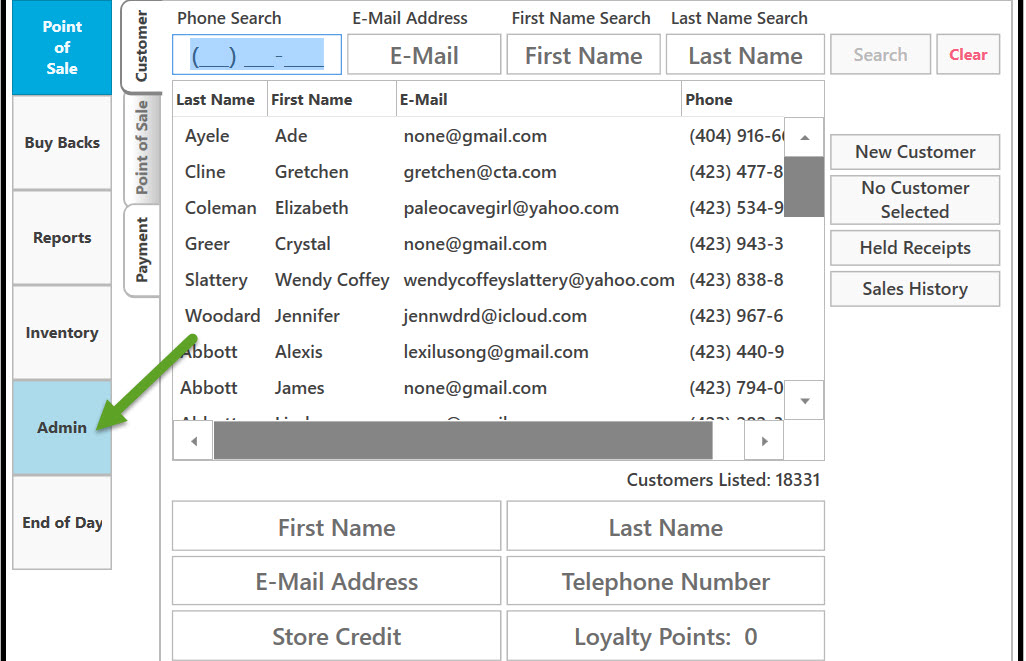
Click on Admin.
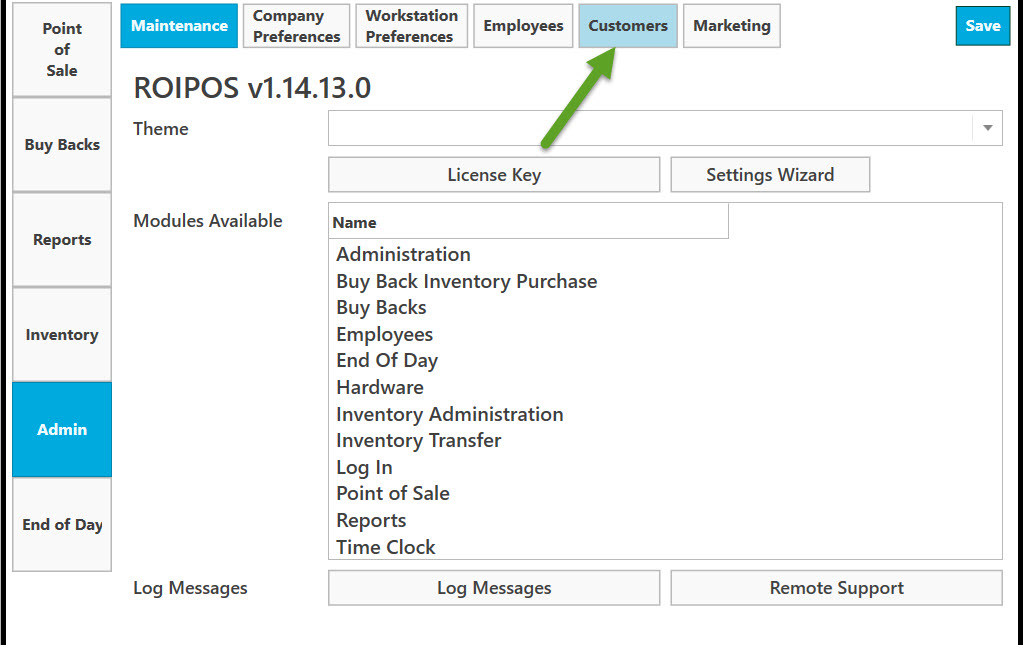
Click on Customers.
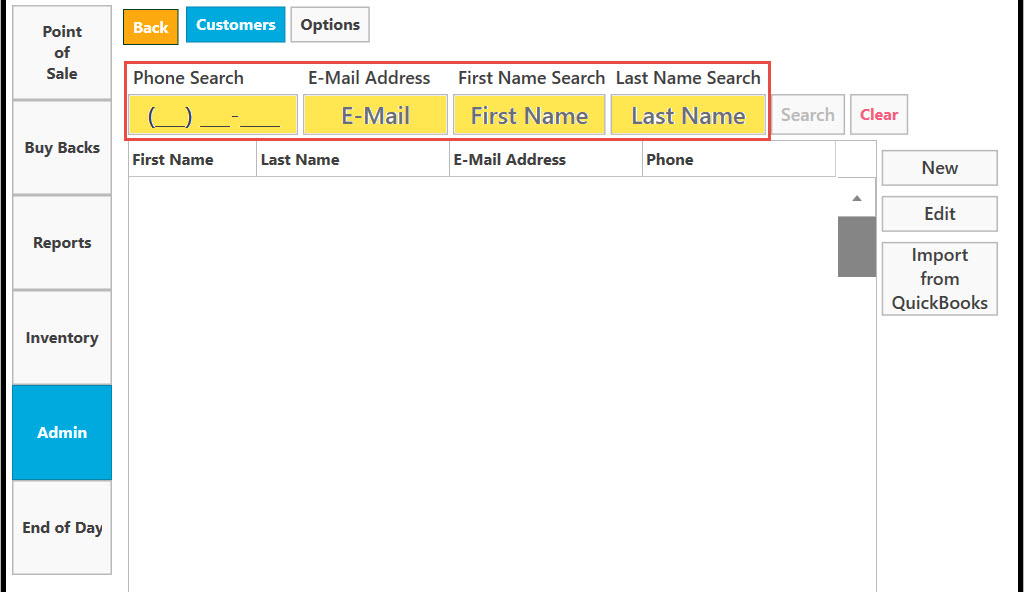
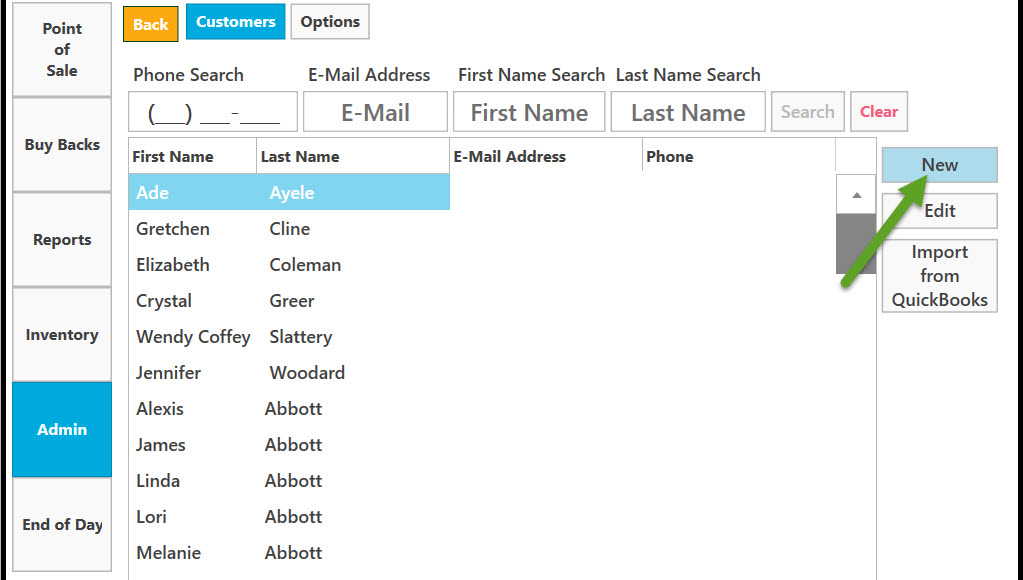
A list of customers will appear.
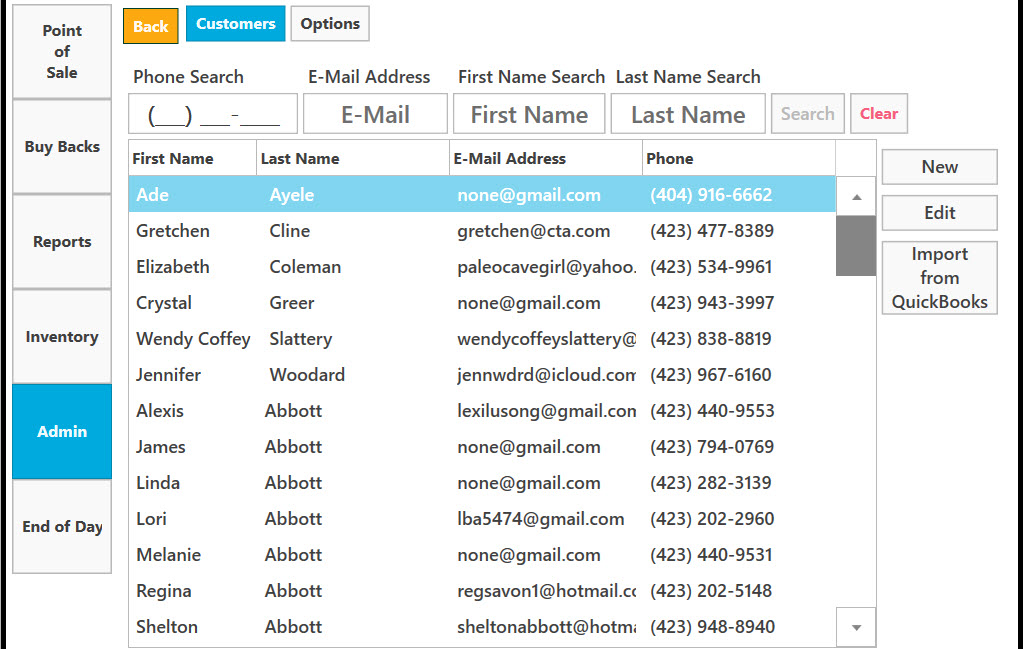
You can search a customer by each or all parameters – Phone number, Email, First Name, and Last Name.
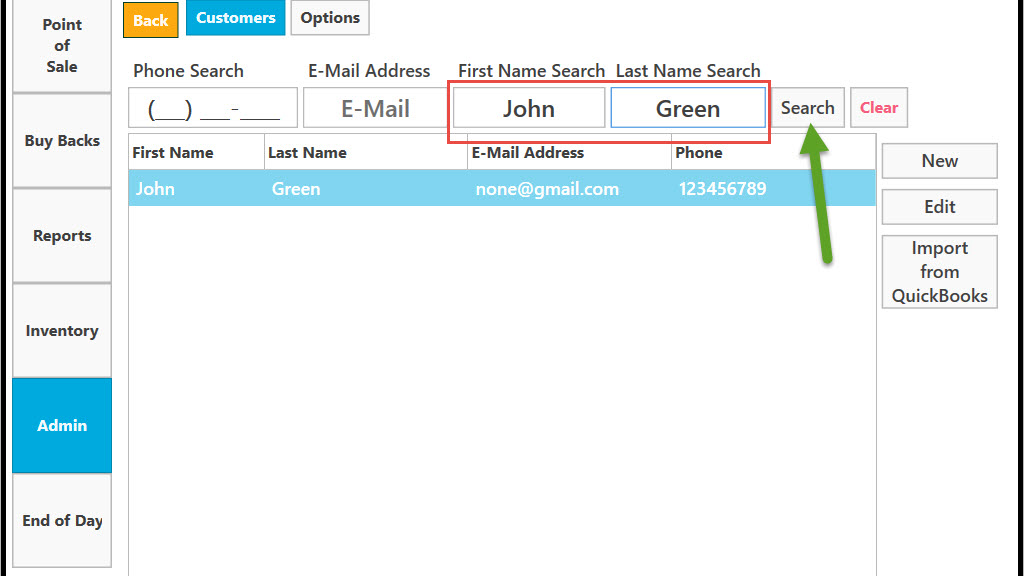
For example, type in the box First Name and Last Name and press Search button. Customer information will appear in the list.
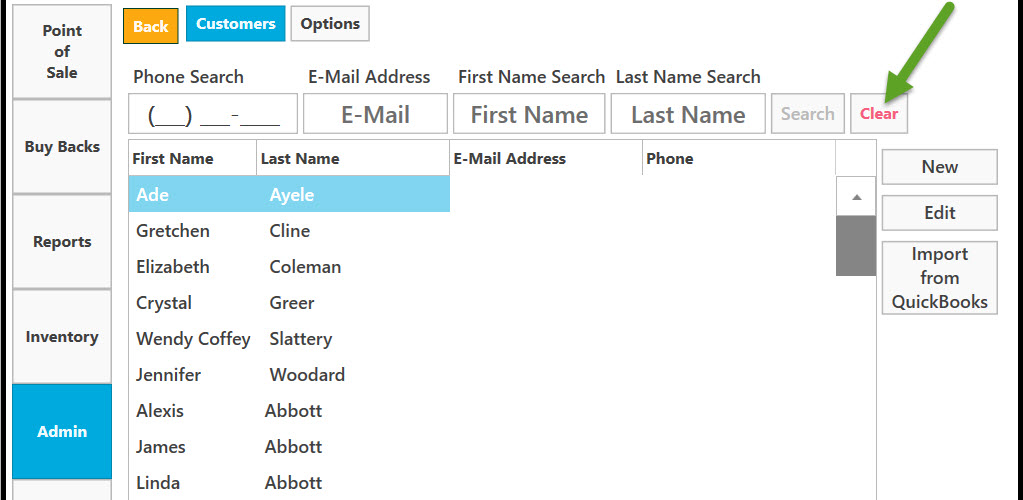
To start a new search or go back to the customer list press Clear button.
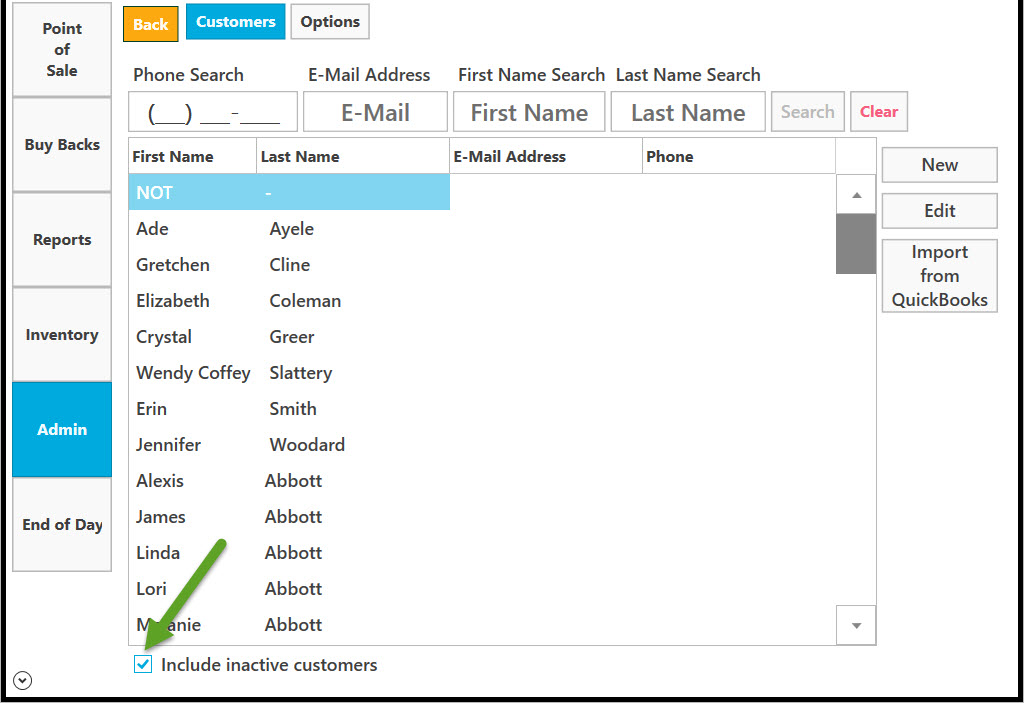
To include inactive customers in the list put a check mark in the Include inactive customers box. The list will be refreshed showing inactive customers.
To add a new customer to the list click on New button
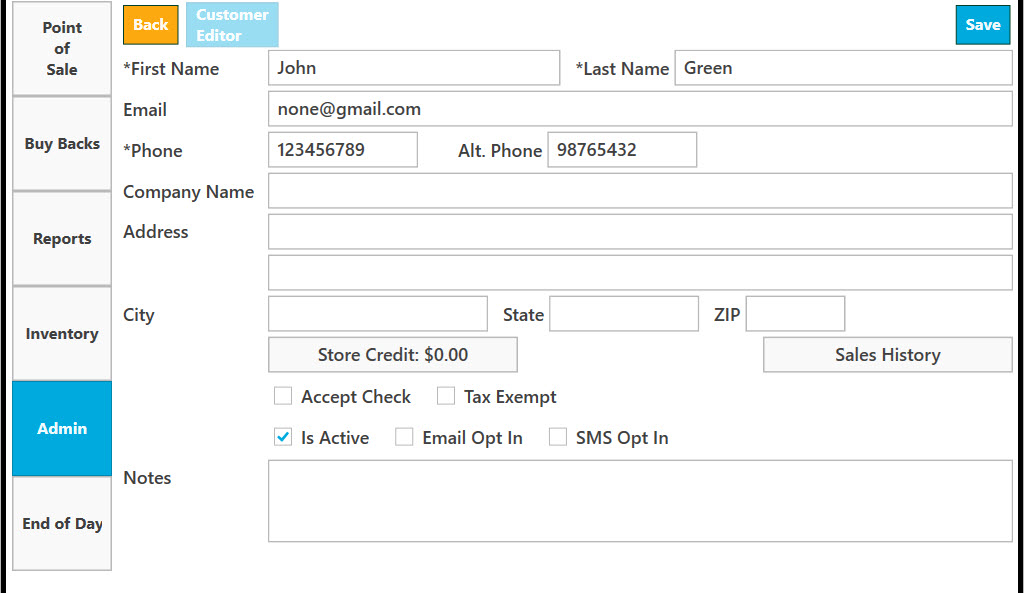
Fill in the fields. Those marked with a symbol (*) are required.
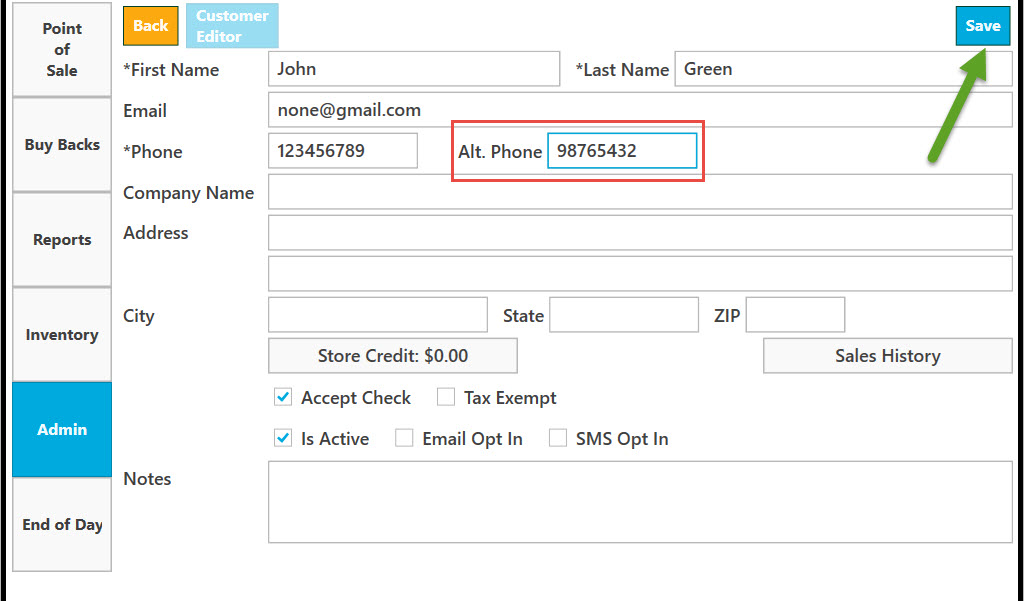
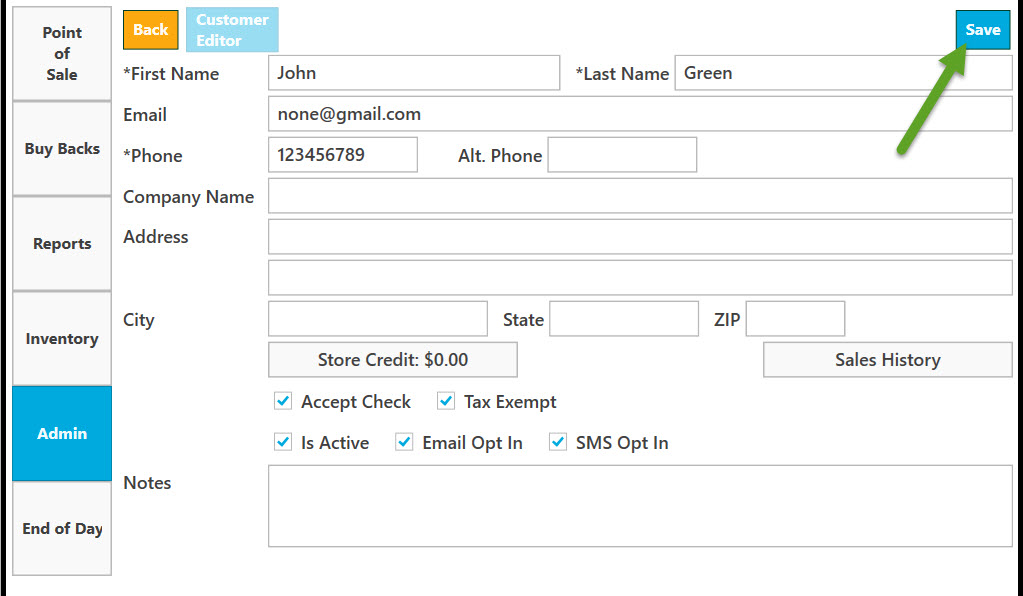
After editing customer information click on Save button.
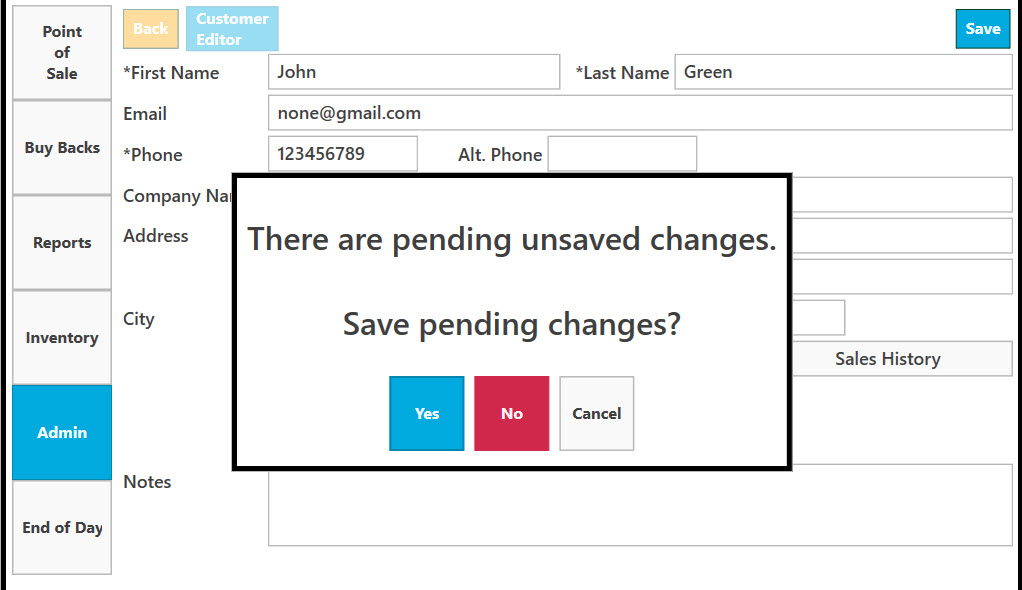
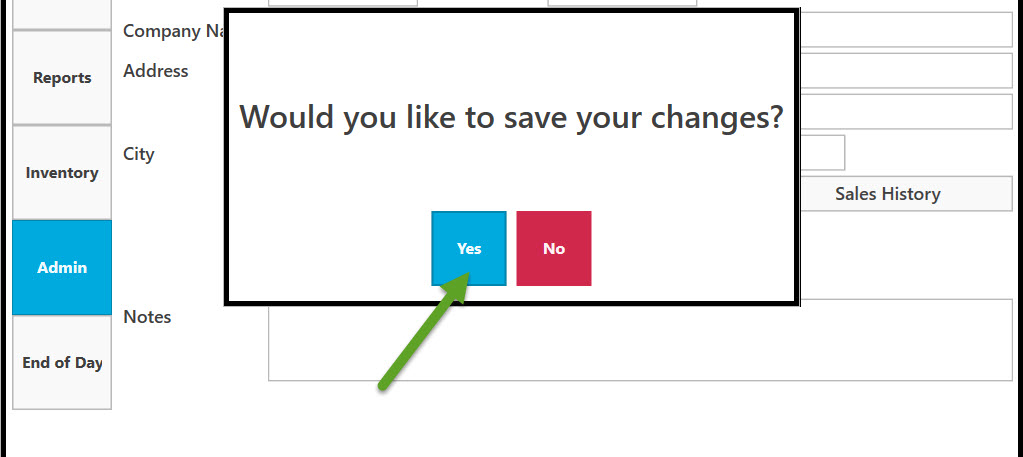
Сlick on Yes if you want to save changes or click No if you want to dismiss.
Store Credit
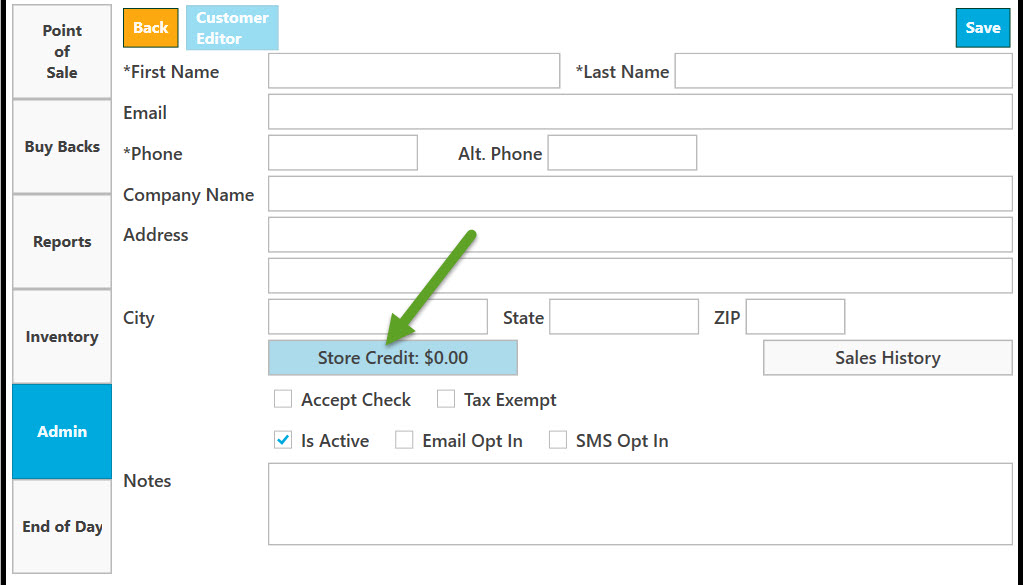
To make Store Credit Adjustments for a selected customer enter adjustment amount, then press Add button.
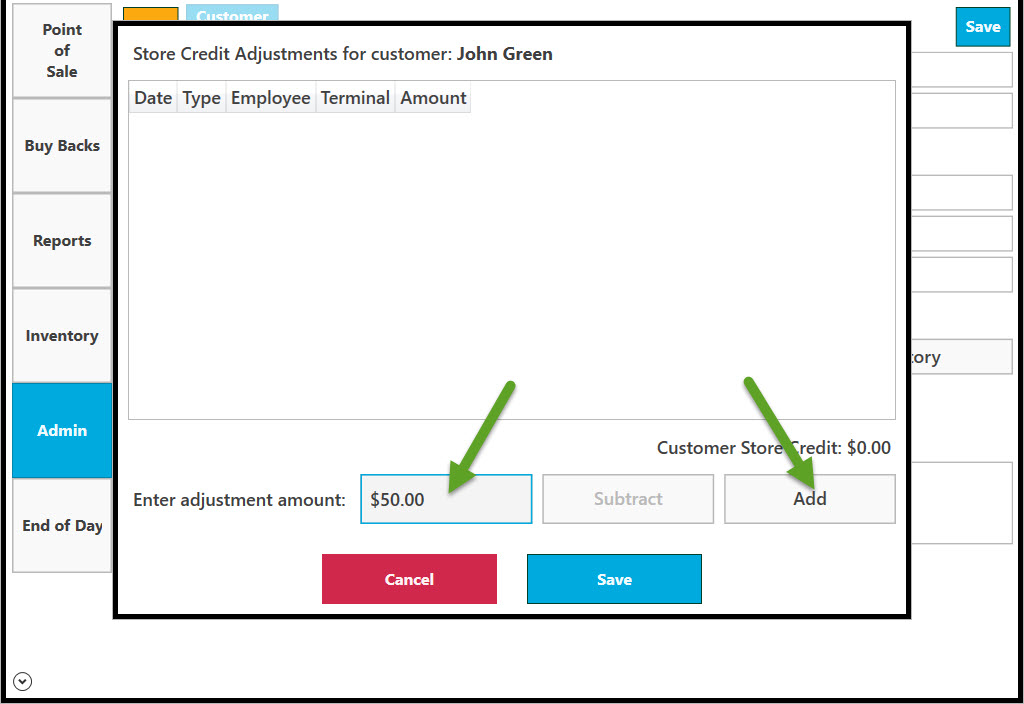
Adjustment information and Customer Store Credit amount will appear. Click on Save and the amount will be saved. Click cancel to go back to Customer Editor.
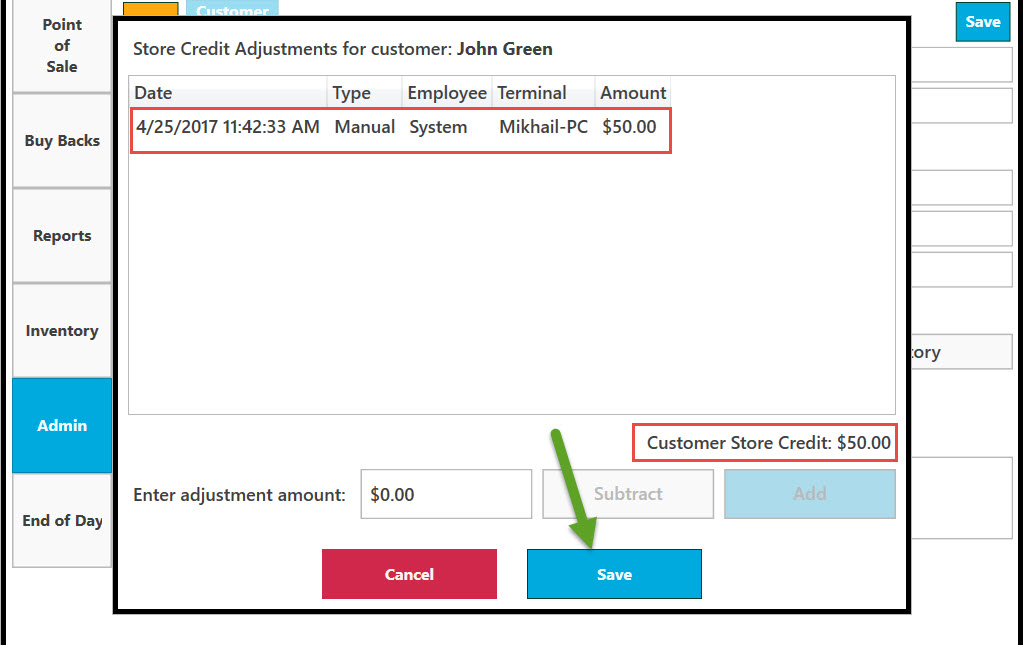
To subtract credit amount enter adjustment amount and press on Subtract button.
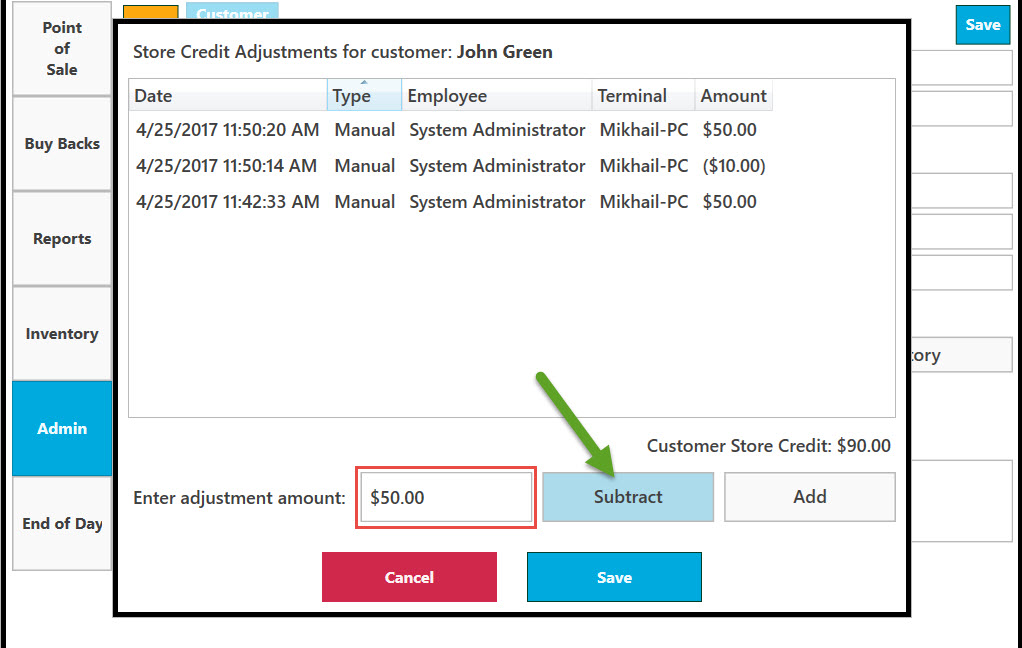
Customer store credit will be adjusted by subtracted amount. In the list of Store Credit Adjustments subtracted amount is shown in brackets.
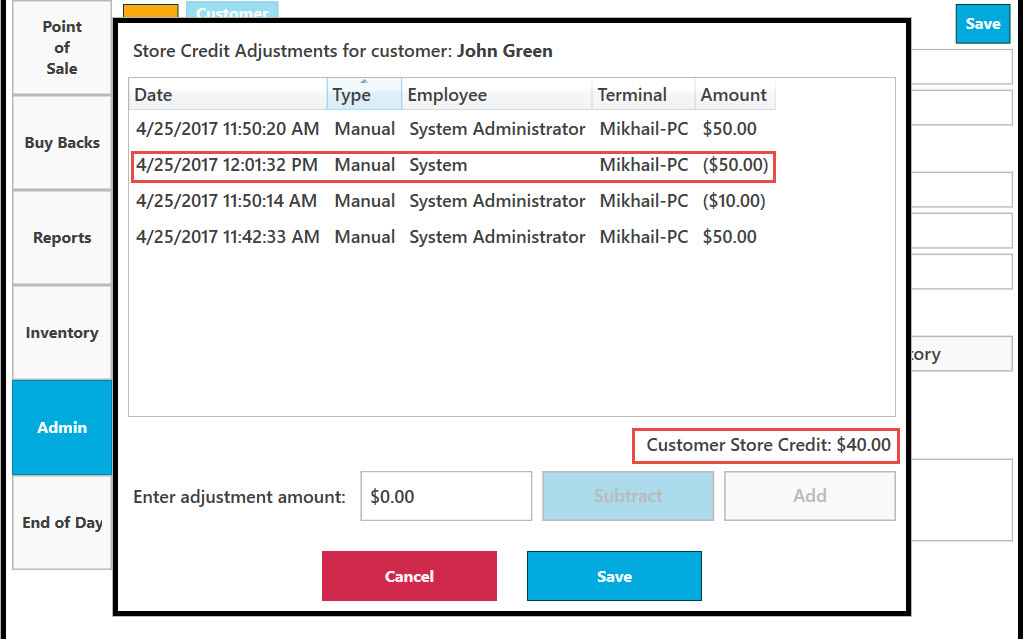
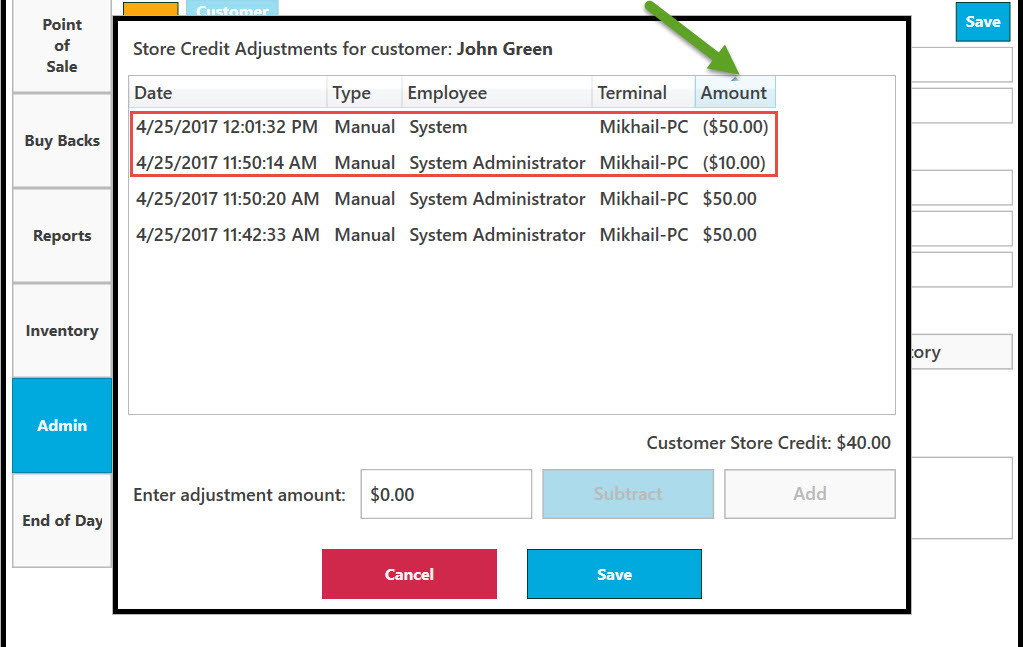
You can sort List of Store Credit Adjustments by Date, Type, Employee, Terminal and Amount. Click on the Category area. Adjustments cannot be saved.
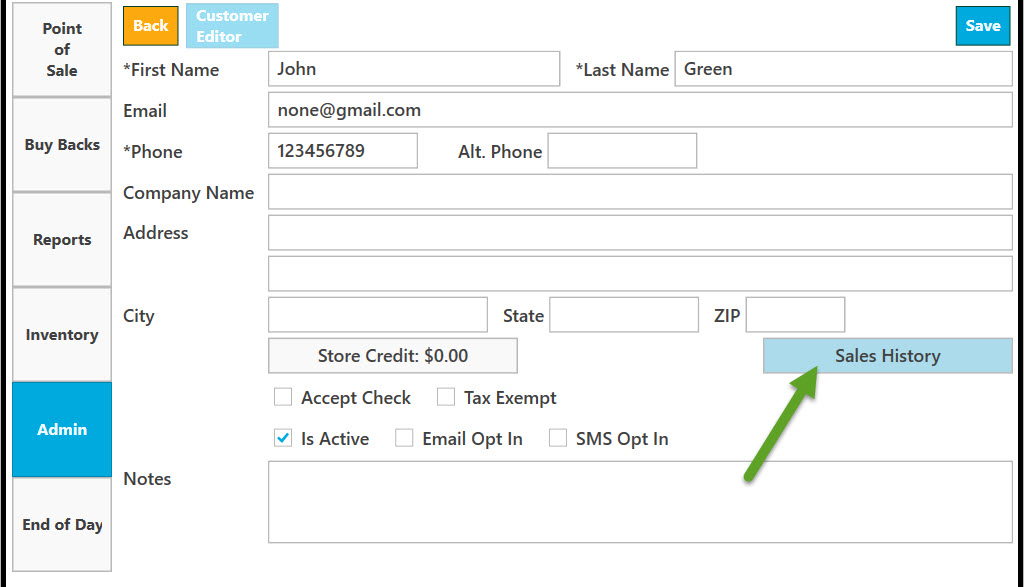
To look up sales history click on Sales History button.
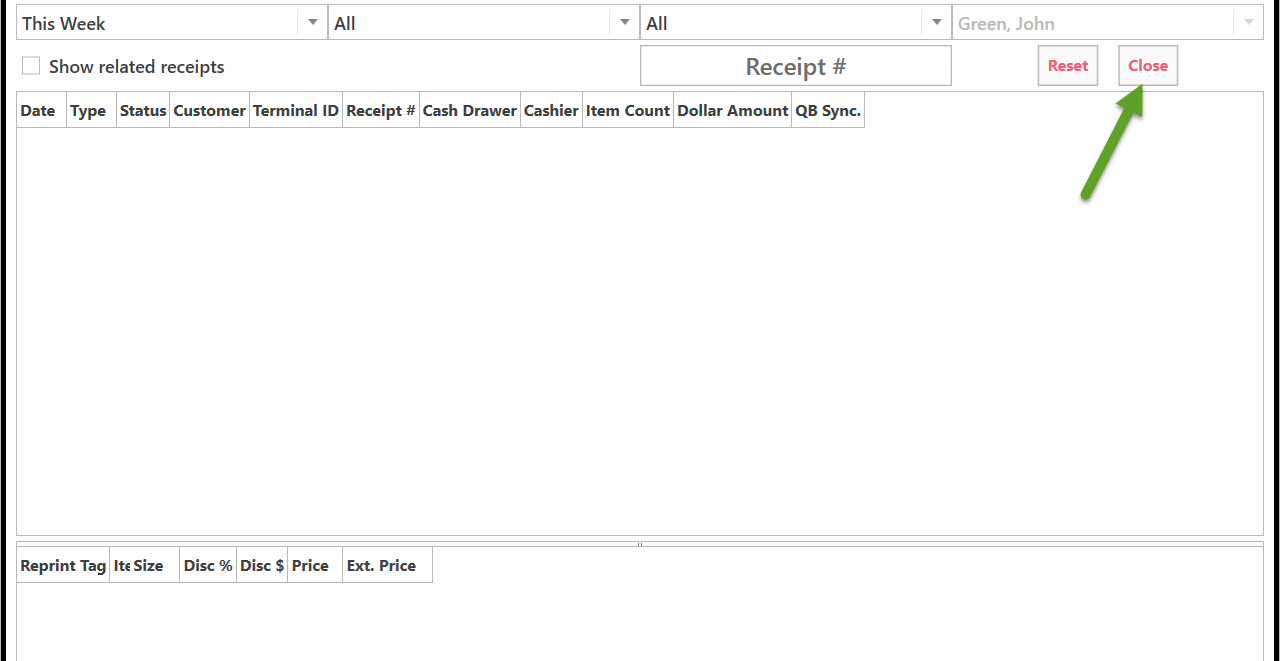
A window with Sales History will appear. To leave the page, click Close button.
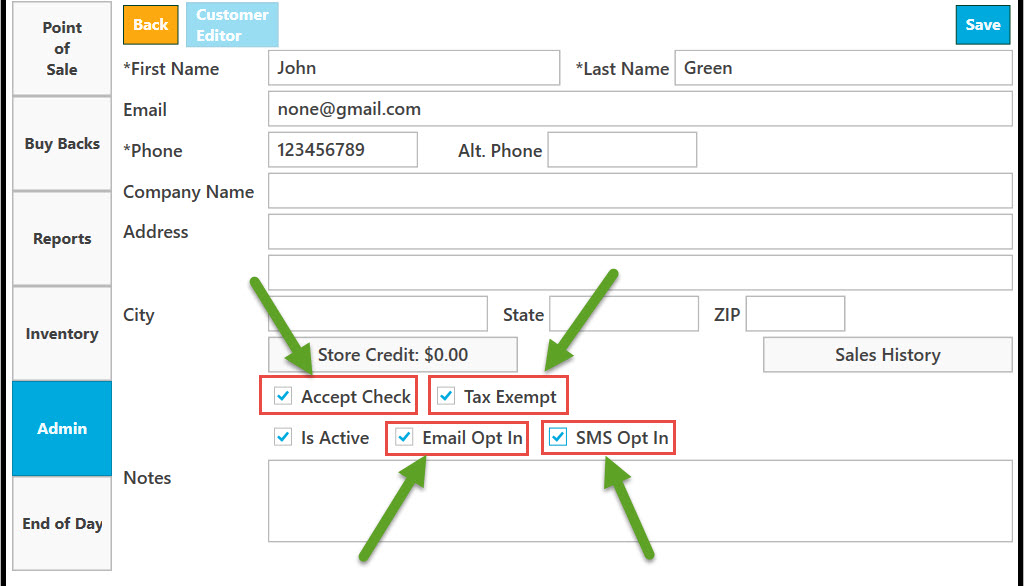
Put check mark
Accept Check
Tax Exempt
Email Opt In
SMS Opt In
To save, click on Save button.
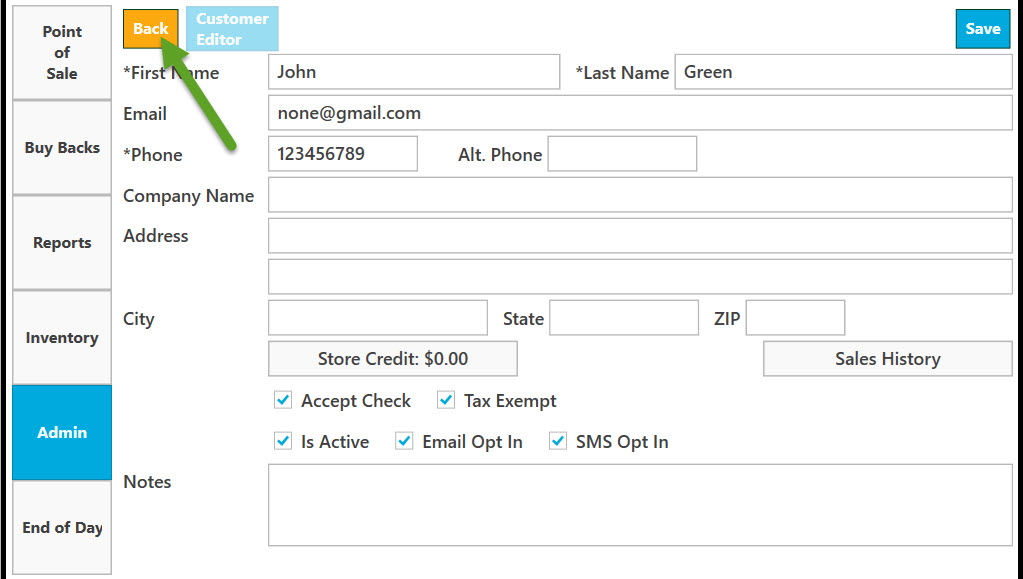
To exit Customer Editor click Back button.
In the dialogue window that appears click Yes button to confirm, No button to dismiss and Cancel to return to Customer Editor